Introduction
File sharing between devices shouldn’t be a chore, especially in high-pressure environments. With Syncthing, a platform-agnostic file-sharing tool, you can seamlessly transfer files and images between your mTOC terminal, mobile devices, and other systems. Whether you’re reconciling field reports, preparing a briefing, or simply transferring critical documents, Syncthing has you covered.
This skill drill will teach you how to set up Syncthing on your mTOC, share files with collaborators, and ensure secure and efficient file transfers.
Uses
Syncthing enables robust file sharing for a variety of scenarios:
- Recon: Quickly collate field data, images, and notes from multiple sources.
- Collating: Sync and organize intelligence reports across your devices.
- Briefing: Share polished documents or visual aids directly from your mTOC terminal to team members’ devices.
Setting Up
iOS: Mobius Sync
- Download and install the Mobius Sync app from the App Store.
- Open the app and follow the setup wizard to generate your Syncthing device ID.
- Note down your device ID—you’ll need it to link with your mTOC terminal.
Android: Syncthing
- Download the Syncthing app from the Google Play Store.
- Open the app, complete the initial setup, and generate your device ID.
- Keep this ID handy for pairing with your mTOC terminal.
Setting Up the mTOC’s Syncthing
Syncthing is pre-installed on all mTOC terminals, and its status is integrated into the heads-up display (HUD):
- Red: Disabled.
- Yellow: Enabled but not running.
- Green: Enabled and running.
Starting Syncthing:
- Open the terminal on your mTOC. If your Syncthing on your HUD is red:
- To enable and start Syncthing:
sudo systemctl enable syncthingsudo systemctl start syncthing - To check its status from the CLI (if your HUD is disabled or you’re building your own)
sudo systemctl status syncthing - Confirm the status matches what you see in the HUD (green means enabled and active).
Tip: If you’re troubleshooting, use sudo systemctl stop syncthing to stop Syncthing (yellow) or sudo systemctl disable syncthing (red)to turn it off completely.
Creating a Shared Folder
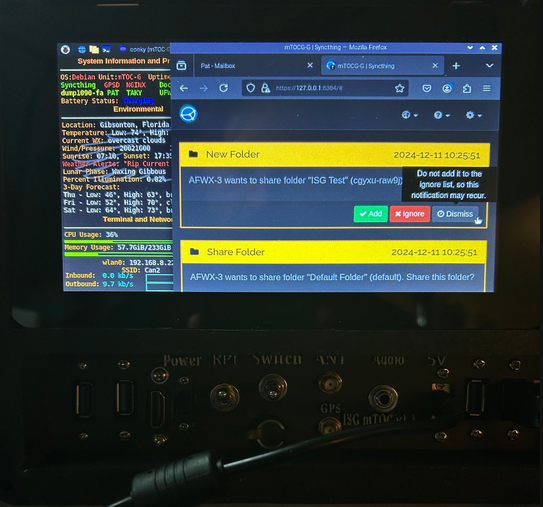
- Open Syncthing’s web interface by navigating to
http://127.0.0.1:8384in your mTOC browser (This is the localhost address, and is used for a few different mTOC related tasks). - Click Add Folder and configure:
- Folder Path: Specify where the folder will reside on the mTOC.
- Folder Label: Give it a meaningful name (e.g., Recon Data).
- Click Save to create the shared folder.
Create or discover a Shared Folder on the Mobile Device
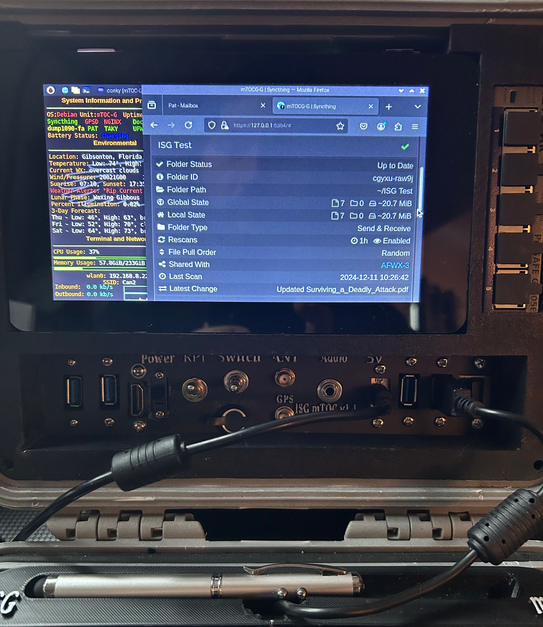
Adding Collaborators
- In the Syncthing web interface, locate the Remote Devices section.
- Click Add Remote Device and enter the collaborator’s device ID.
- Assign the shared folder to the collaborator by clicking Share under the folder options.
- Confirm the pairing request on the remote device to finalize the link.
Tip: Use the “Introducer” option if you want your collaborator to automatically share new devices with you.
Transferring Files Between Mobius Sync/Syncthing and the mTOC
Once connected, transferring files is seamless. Here’s how:
Step 1: Upload Files from Mobile to the mTOC
- On Mobius Sync (iOS):
- Open Mobius Sync and navigate to the shared folder.
- Tap the Upload button (or equivalent) to add files.
- Select the files you want to sync from your phone. These will automatically sync to the mTOC.
- On Syncthing (Android):
- Open the shared folder in the Syncthing app.
- Place files into the shared folder (this may vary depending on your file manager).
- The files will sync automatically to the mTOC’s shared folder.
Step 2: Download Files from the mTOC to Mobile
https://youtube.com/shorts/CJ3vhXTt32M?feature=share
- On Mobius Sync (iOS):
- Receiving Files
- Navigate to the shared folder in Mobius Sync.
- Select “open folder”. This will bring up the contents of the shared folder on your device.
- Tap on a file to download it to your mobile device for offline access.
- Sending Files
- Navigate to the file or image you’d like to share.
- Press and hold to bring up the dropdown menu.
- Select “Save to files”.
- Save the file to the desired, shared Syncthing folder
- Confirm the file has been successfully added
- Receiving Files
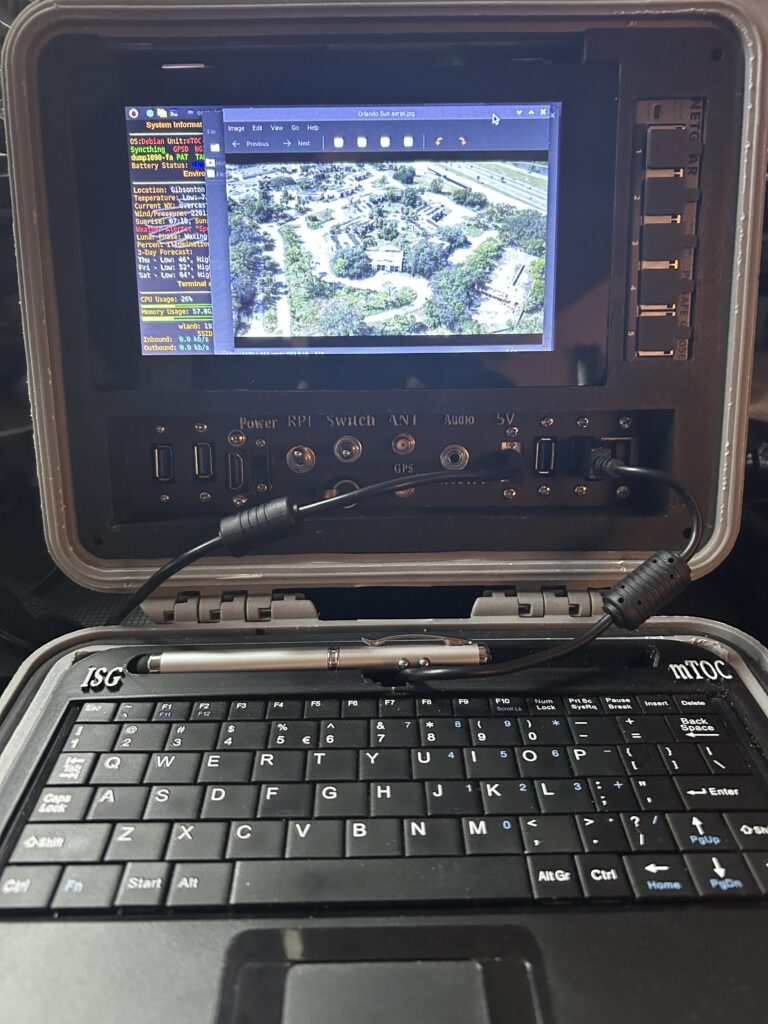
- On Syncthing (Android):
- Open the shared folder in the Syncthing app.
- Files synced from the mTOC will appear automatically in the folder.
- Use your mobile device’s file manager to open or move the files.
Conclusion
With Syncthing, your mTOC terminal becomes the hub for seamless, secure file transfers. From gathering reconnaissance data to distributing briefing materials, you’re now equipped to manage files across platforms and maximize your mTOC’s capabilities.
How did this challenge work out for you? Share your results and insights in the comments below!